
Pocket Aurora Papers
How the archive works
It is a personal document archive, not a scanner that stops at a PDF. Here is what happens from the moment you scan a page to the moment you find it again.
-
Scan, share or forward
Hold your iPhone over a page: the camera outlines it as it sees it and takes it by itself once it holds still, then waits for the next page. Each page is straightened and cleaned up. An open notebook can be taken as two pages at once.
Already have the file? Share a PDF or a picture to Papers from Mail, Safari or Files. Or forward an email to your private Papers address: mail from an address you have allowed is checked, and its attachments become documents.
-
Checked before you move on
After every shot you see the page and what the app thinks of it. A blurred, dark or cut-off page is marked worth retaking. You choose: Retake, Adjust the corners, or Keep it as it is.
-
Read on your device
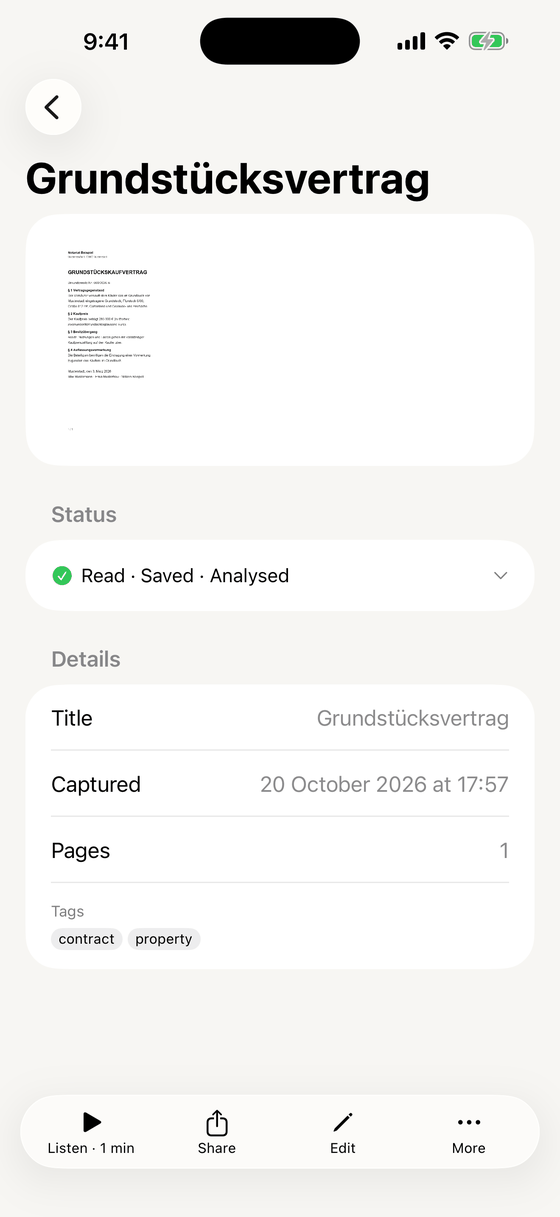
Your iPhone reads the text on each page itself, in English, Czech, German, French and Spanish. A document’s Status shows when its text has been read, when it is saved to your account, and when its details have been filled in. The app’s own menus and buttons are in English.
-
Details, filled in if you want
A document can carry its issuer, date, reference number, amount, due date, type and category. Type them yourself, or turn on suggestions: the text read from the page, never the page itself, is then sent to an AI model in the EU, and Papers fills in only the details that are empty. Each one is marked as suggested until you keep it, change it or reject it. Suggestions are off until you turn them on.
-
Find it
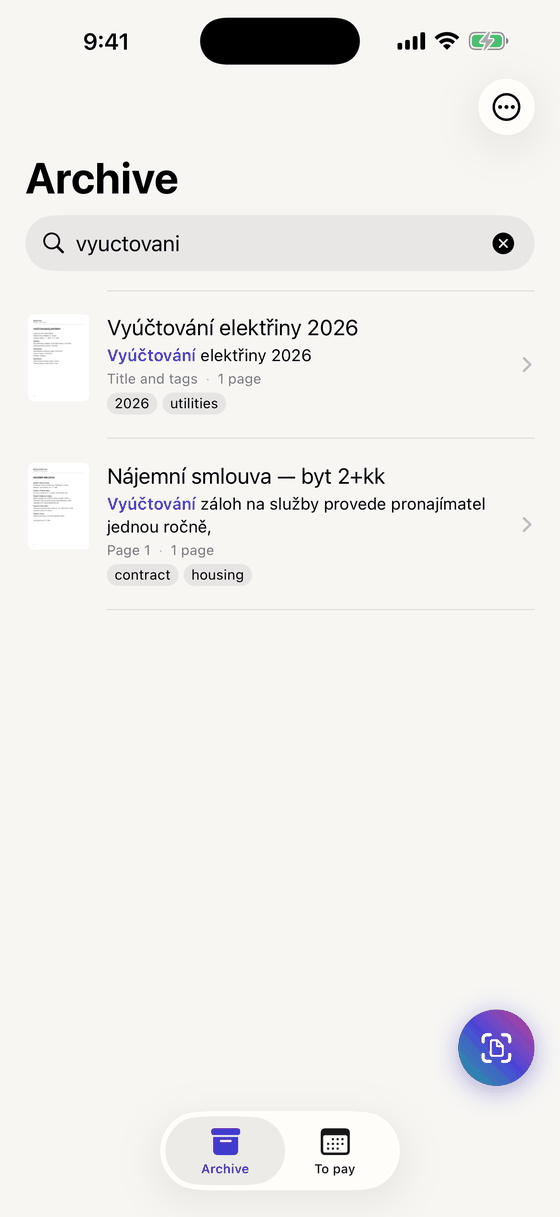
Search looks through the text on your pages, your titles and your tags, so there are no folders to keep. You can type without accents and still find the page, and typing the start of a long German compound word is enough. Search works offline.
Keep home and work apart with spaces: Personal, Work, School or any you name. Search and everything else follow the space you are in.
-
Pay on time
Give a bill its due date and Papers reminds you three days before and on the day. The reminder does not name the bill or show anything from it. Mark it paid when it is done; the To pay tab lists everything still open.
-
Listen
Have a long letter, a contract or your own notes read aloud. The app arranges the text it has read: it drops page numbers, headers and footers, joins sentences that run across pages, and finds the chapters. Then your iPhone’s built-in voice reads it. You can change the speed, set a sleep timer and add bookmarks.
The voice is made on your phone, and no audio is saved, exported or uploaded. If you sign in, your place, your speed and your bookmarks follow you to your other devices. While it plays, the document’s title shows on your lock screen, as with any audio app.
-
Share it, on your terms
Send a document as a PDF or as pictures, at the quality you choose, or only the pages you pick. Or make a link: it is encrypted on your iPhone, stops working after the time you set, up to 30 days, or the number of opens you set, up to 25, and can have a password. You can revoke it at any time, and deleting the document revokes it too. Anyone with the link can open it. Once revoked it cannot be opened again, though a download address it had already handed out can keep working for up to five minutes.
-
Keep it
The original file is never overwritten: when you edit, the app saves a new version. A deleted document stays in the Deleted list for 30 days, and you can restore it during that time. After that it is removed from this iPhone. What deletion means for your account and our backups.
-
Safe in the cloud, on every device
Sign in with your Google account, and your documents, their text and your changes are copied to our storage at Amazon Web Services in the EU and appear on your other devices. There they are encrypted while stored, every connection to them is encrypted, with keys we manage. They are kept across at least three availability zones within one EU region: separate groups of data centres, each with its own power and network. Sign in with Apple comes with the first release.